
Calendars & groups
A calendar is a publishing unit — one .ics feed, one Telegram channel
(if you wire one), one place families can subscribe. A group is a
training cohort inside a calendar. Athletes belong to one home group.
Most clubs end up with 2–3 calendars (e.g. “Age Class”, “Ability”, “FIS”) and 4–8 groups inside each (U10, U12, U14, …).
Manage both at /coach/calendars.
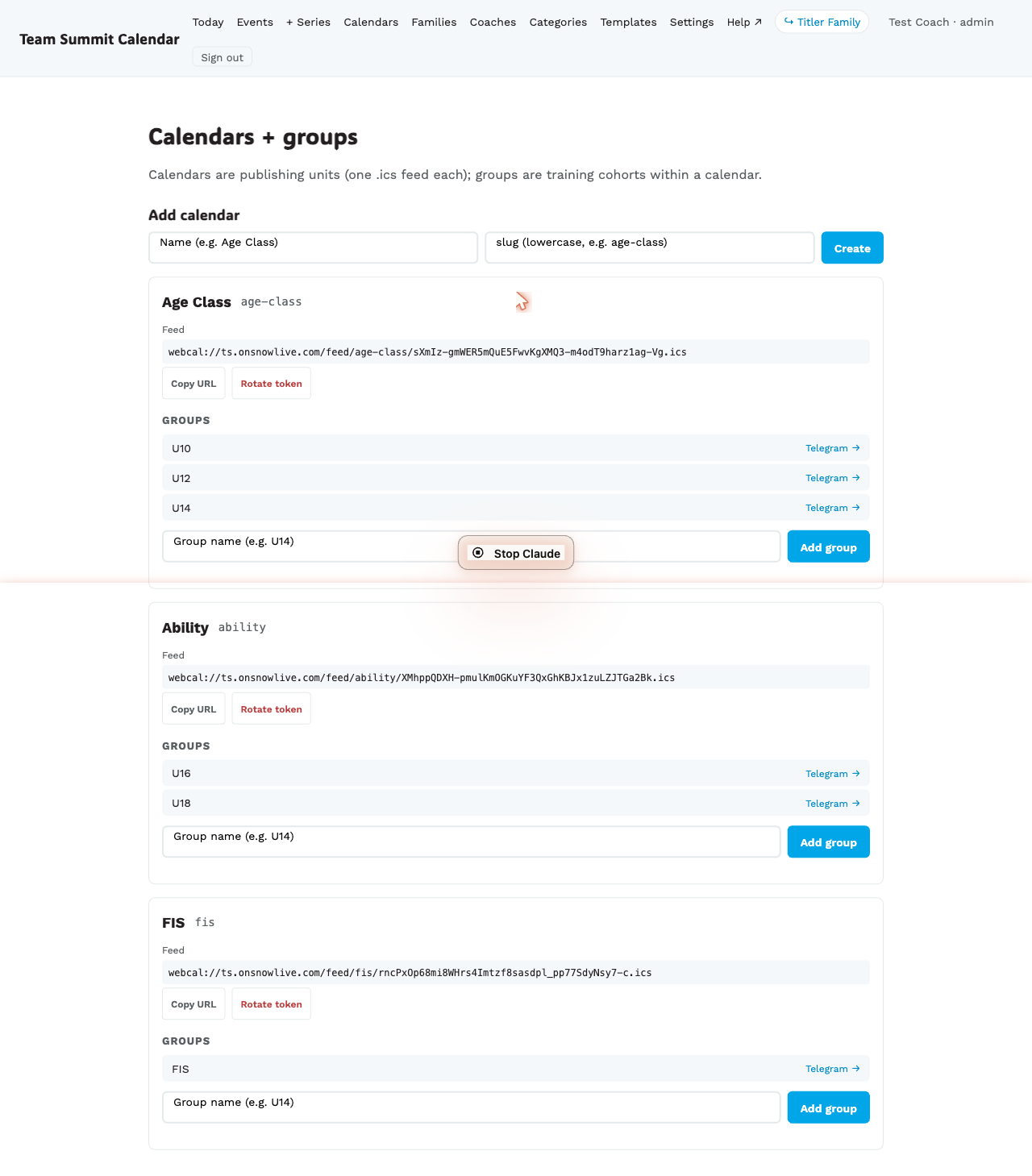
Step by step — create a calendar
- Go to
/coach/calendars. - Under Add calendar, type the Name (e.g.
Age Class) and a slug (lowercase, hyphenated, e.g.age-class). - Create.
The new calendar appears below with its .ics feed URL and an empty
groups list.
Step by step — add groups to a calendar
- Inside the calendar card, scroll to the Groups section.
- Type the group name (e.g.
U14) in the Add group field. - Add group.
Repeat for every cohort. Groups are stable once created — events, athletes, and Telegram channels all reference them by ID.
What the feed URL is for
Each calendar exposes a tokenized iCal feed:
webcal://ts.onsnowlive.com/feed/<slug>/<token>.icsCoaches and families subscribe to it from Apple Calendar / Google Calendar / Outlook. Don’t share the token publicly — anyone with the URL can read the feed.
If a token leaks (e.g. it was posted in a public Slack), tap Rotate token — the URL changes and everyone subscribed with the old URL stops receiving updates and needs to re-subscribe.
Naming guidance
- Calendar slugs become part of the feed URL — keep them short and lowercase. Once chosen they are stable.
- Group names show up everywhere (event cards, family pages,
attendance lists). Use whatever the parents call the group, not the
internal code (e.g.
U14notg_u14_2026).
What happens when you create a calendar or group
- The row is created. No notifications fan out.
- The feed URL is live immediately — but until you create events on it, the feed is empty.
- Empty groups are fine. Add athletes to them via the Families pages.
Wiring Telegram
Per-group, optional. Each calendar card has a Telegram → link next
to the group. See Wiring a Telegram channel.
Renaming, archiving, or deleting a group
Tap the ▾ on any group row to expand the edit controls. Next to
the name you’ll see a usage badge — either empty (nothing attached)
or a summary like 2 athletes · 4 events · 1 coach. That decides
which actions are safe.
| Action | When to use |
|---|---|
| Rename | Fix a typo or shorten a label. Existing events, athletes, and Telegram channels keep working — they reference the group by ID, not name. |
| Archive | Retire a group that has history (athletes who’ve moved on, past events). It stops showing up in new event creation but stays visible in gray so the audit trail stays intact. |
| Un-archive | Bring an archived group back into rotation. Same row, same ID, same history. |
| Delete | Only shown when the usage badge says empty. Hard-deletes the row. Use this for stray groups created by accident (e.g. a typo’d name with no athletes attached). |
The API enforces the safety rule too: if you try to delete a group that’s referenced anywhere, it’ll refuse with a clear error telling you exactly what’s attached. Archive is the right answer any time the group has real history.
Calendars
Calendar rotate-token and create flows live in the same page header. There’s no delete for calendars in the tool. To retire one, archive its groups; the calendar then carries nothing and drops out of the pickers.