
Send a team message
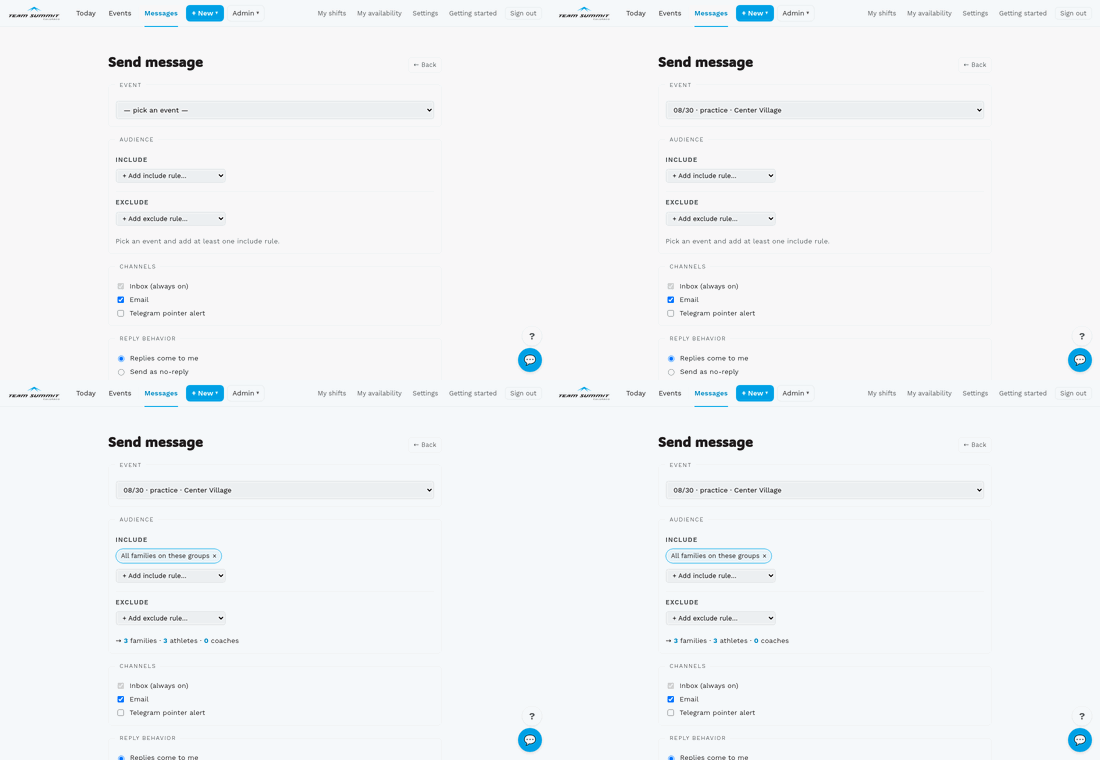
The Messages tool (/coach/messages) lets you send a free-form message
about an event to a precisely-targeted audience — for example, “just the
families who haven’t RSVPed yet” or “everyone except the Castillos.” Two
ways to open it:
- From an event’s edit page, click 📣 Send message in the header. The event is pre-selected for you.
- From the top nav, click Messages → + Send message. You pick the event yourself.
Building the audience
Two passes — include rules union to form the pool, then exclude rules subtract from it. Available rule kinds on both sides:
- All families on these groups — everyone in the event’s groups. It means all of them; eligibility categories don’t narrow it.
- Responded yes / no — this is how you limit an audience
- No response yet — anyone in those groups without an RSVP row
- All coaches on these groups — coaches you can also send to (they
have
coach_grouprows on the event’s groups) - Specific family — typeahead picker
- Specific coach — typeahead picker
The audience counter under the rules updates as you add or remove rules so you can see exactly how many families/athletes/coaches will receive the message. Family-in-if-any-athlete-matches semantics: a family with two athletes (one yes, one no) stays in for “all but yes” because the no-responder keeps them in.
Channels
- Inbox is always on. The message appears at the top of each
recipient family’s page (and in each recipient coach’s
/coach/messagesinbox) until they tap Mark read. - Email sends one email per family contact (with alerts enabled) and one per coach recipient.
- Telegram pointer alert posts a short alert in each linked group channel — ”📣 New coach message · <event> · Audience: <summary> — Check your family page for the full message.” The message body itself never goes in the channel (the channel can’t filter audience, and posting the body would defeat the include/exclude picker).
Reply behavior
- Replies come to me (default) — emails set Reply-To to your address, so recipients hitting Reply land in your inbox.
- Send as no-reply — emails set Reply-To to the no-reply sender. Use for one-way announcements where you don’t want to handle replies.
Subject + body
Subject is optional and only shows up in the email channel — if blank, the email uses a generic “<Your name> sent you a message.” The body is plain text; line breaks are preserved.
What happens after Send
The recipient snapshot is frozen at send time — if a no-responder RSVPs after you send, they still got the message and it still shows in their inbox. This keeps “sent to no-responders on May 12” stable even when RSVPs change.
Your sent messages live under Messages → Sent. Admins get a third All (admin) tab that lists every message sent in the club.