
Desktop tour
On a laptop (>768px wide), the coach app shows a horizontal nav bar with four primary buttons and (for admins) one Admin dropdown. Personal links live in the top-right corner.
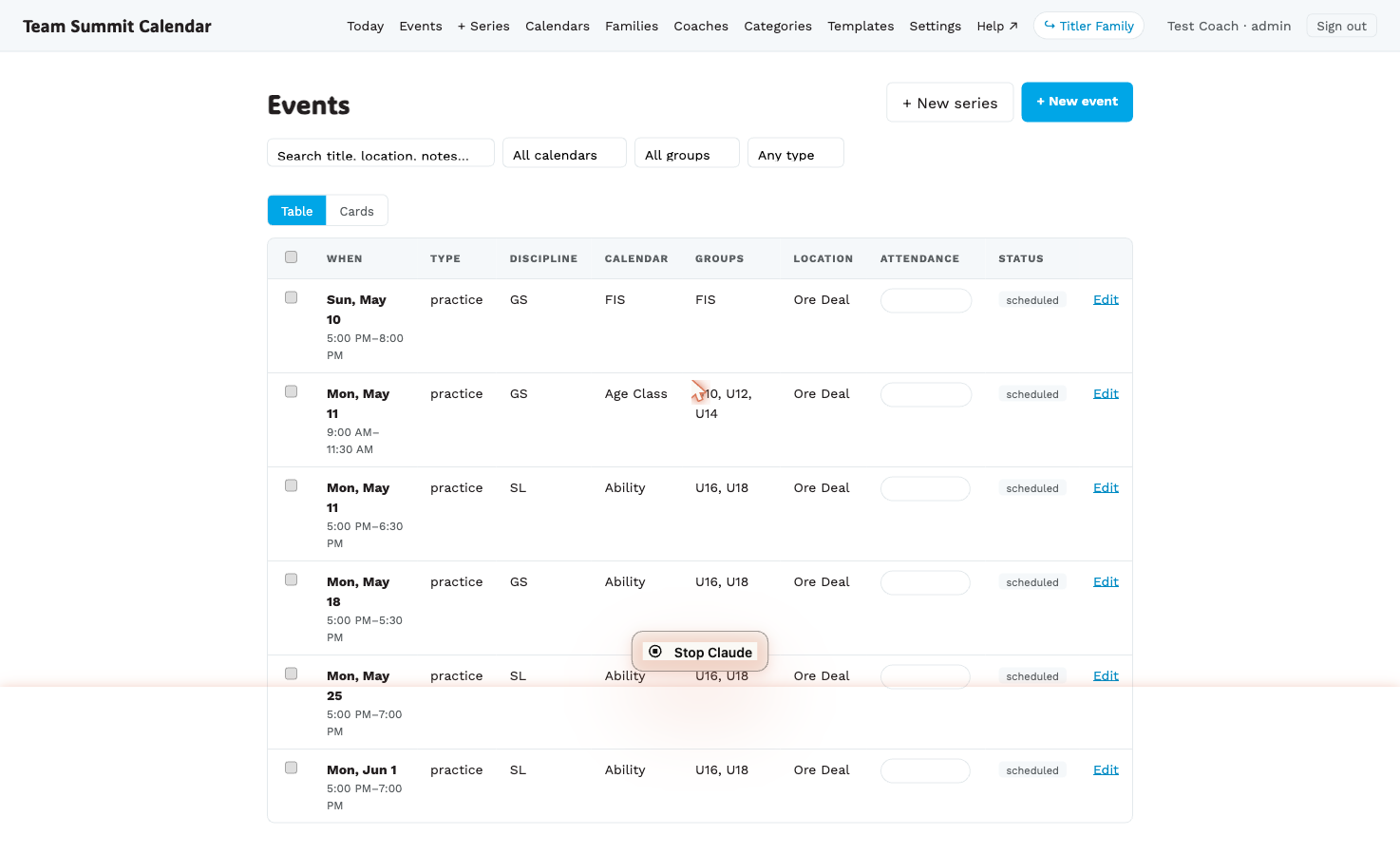
Primary nav (everyone sees these)
| Button | What’s there |
|---|---|
| Today | Phone-style view of today + tomorrow. Optimized for on-the-hill edits, but works on desktop too. |
| Events | The full event list. Filter by calendar, group, type and day of the week (pick Sundays to work on every Sunday at once). Bulk-select for editing many at once. Defaults to all upcoming events — quick-pick chips are Today / All upcoming / All incl. past / Range. Range opens two date boxes for any window you like; All incl. past also drags in everything behind you. Columns include Eligible, showing which categories each event is aimed at. Past events render dimmed with a “Completed” badge and can’t be edited or bulk-selected. There’s also a Month view for a calendar-grid overview. |
| Messages | Inbox for messages sent to you (and your own sent messages, plus an All tab for admins). Send a team message → |
| + New ▾ | Dropdown to create a single event or a repeating series. |
When you’re on any page that belongs to one of these sections, the button shows a cyan underline so you always know where you are.
Admin ▾ (admins only)
A single dropdown groups every admin-only surface so the main nav stays short. Inside:
- Schedule — Schedule grid (coach shift assignment + RSVP grid)
- People — Families, Coaches
- Setup — Calendars & groups, Categories, Message templates
- Operations — Feedback inbox
Top-right corner (your stuff)
| Link | What it does |
|---|---|
| My shifts | Your personal next-4-weeks shift list. More → |
| My availability | Mark the days you can’t work, before the schedule is built. More → |
| Settings | Push notifications and what triggers them, your groups’ Telegram chats, the subscribe links for the calendar on your phone, which calendars show in your views, coach-as-parent linking, signed-in devices. |
| Help ↗ | Opens this site at the page matching where you are. There’s also a floating ? button on every screen that does the same. |
| ↪ Smith Family | If you’re linked as a parent too, one click jumps to your family page. More → |
| Sign out | Self-explanatory. |
On narrower desktop widths the Help link and your name collapse to make room — they’re always available in the More sheet on mobile.
On mobile (≤768px)
The desktop nav is replaced by a sticky bottom nav with four icons: Today, My shifts, Messages, and More (the full Events list is under More). See Mobile setup for the full picture.