
Wiring a Telegram channel (admin)
Each calendar in the club can have a Telegram channel attached. When that’s set up, the bot posts to the channel on event changes, and families with the bot get phone notifications via Telegram.
This is an admin-only setup task. Once a channel is wired, all coaches benefit.
Prerequisites
- A Telegram channel (not group) you control.
- The bot account
@TeamSummitCalBot(or your club’s equivalent) added as an admin of that channel — required so it can post.
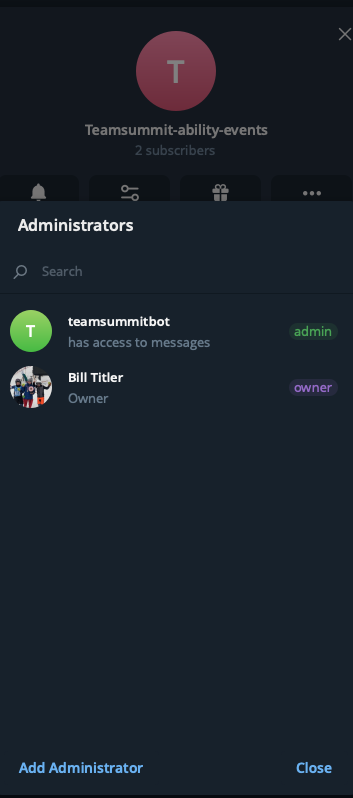
Step by step
- From the coach top nav, Admin ▾ → Calendars & groups (admin only).
- Find the group you’re wiring.
- Tap Telegram → on that group’s row.
- Paste the channel’s
channel_id(e.g.-1003388060864— starts with-100). Telegram doesn’t expose this directly; you can get it by forwarding a message from the channel to @RawDataBot and readingforward_from_chat.id— the setup screen says the same. - (Optional) Paste an invite link (
https://t.me/+...) — this is what families see on their chat panel for joining. - Save.
Wiring is per group, not per calendar. Each group has its own row, so
wiring U16 does nothing for FIS even though both sit on the Ability calendar.
If you want two groups to share a channel, paste the same channel_id into
both — posts are then deduped by channel_id so nobody gets it twice.
Webhook (one-time)
After the channels are wired, register the bot’s webhook with Telegram so we receive channel posts:
curl -sX POST https://ts.onsnowlive.com/api/admin/telegram/webhook \ -H "cookie: __Host-coach_session=<your-session-token>" | jqReturns { "ok": true, "registered": true, "host": "..." }. The webhook URL
itself is never returned — it contains the shared webhook secret. Now human
admin posts in
the channel flow into the family-page chat panel and trigger pushes.
Verifying
- Post a manual message in the channel from the Telegram app.
- Within ~1 second, reload a family page in the calendar’s groups — the post appears in the chat panel.
- Families with push enabled get a phone notification.
Adding a second / third calendar
Repeat per group. Team Summit currently runs three channels: one shared by U10/U12/U14 (Age Class), one for U16 and one for FIS — the last two both inside the Ability calendar.
If a channel breaks (bot kicked, channel deleted)
A weekly probe runs every Monday morning and checks each configured channel
is reachable (it reads the channel; it does not post). If the bot has been kicked from a channel or the
channel itself has been deleted, the probe writes an entry to
/coach/feedback under the bot-health source — visible to all
admins — with a short note pointing to the affected group.
Most common fix: re-add the bot as admin in the channel. If the channel is genuinely gone, remove the wiring from the group’s Telegram page (Calendars & groups → Telegram → on the group’s row) to stop the weekly alarm.
You don’t need to wait for the weekly probe — if you suspect a channel
issue, post a manual message in the coach UI and watch for delivery
errors in /coach/feedback.