
Bulk-edit a range
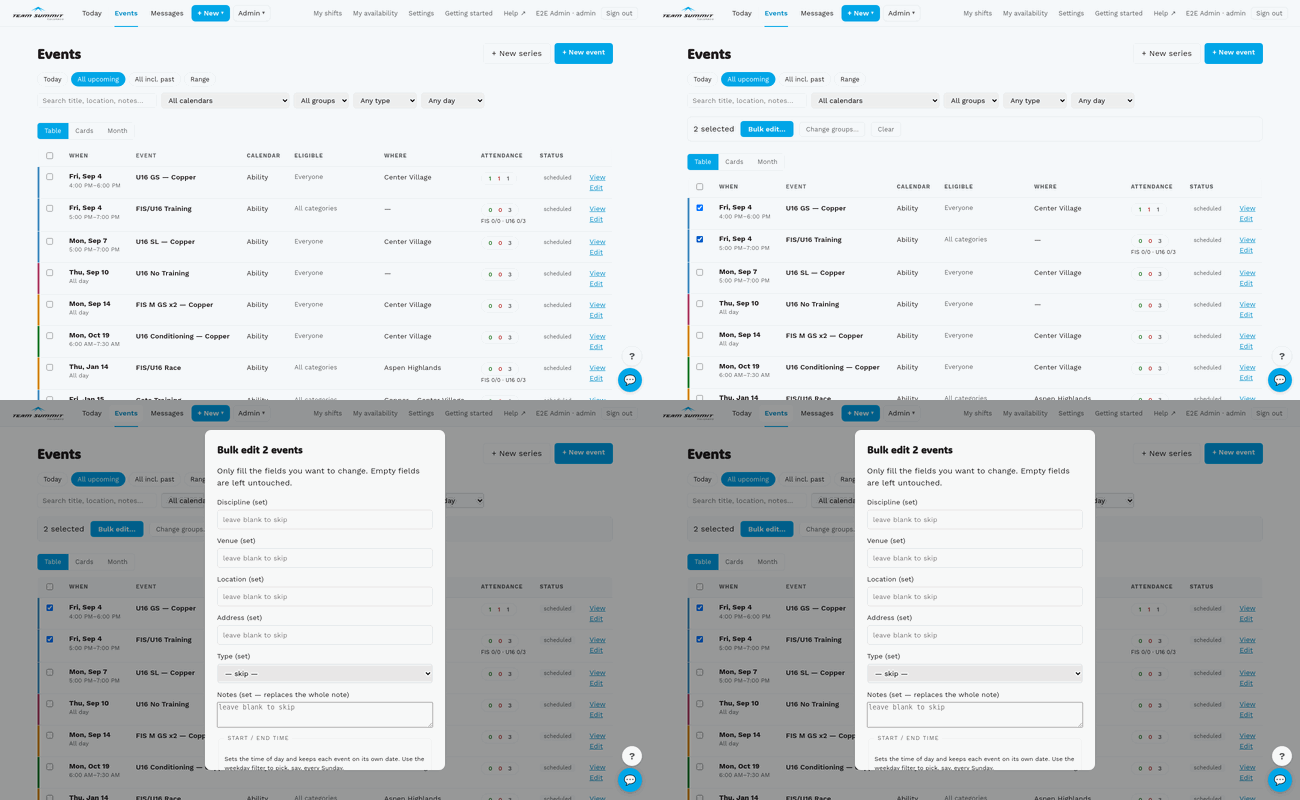
Use bulk-edit when you’d otherwise open each event in turn. The
events list on /coach/events supports multi-select and a single
update across the selection.
Step by step
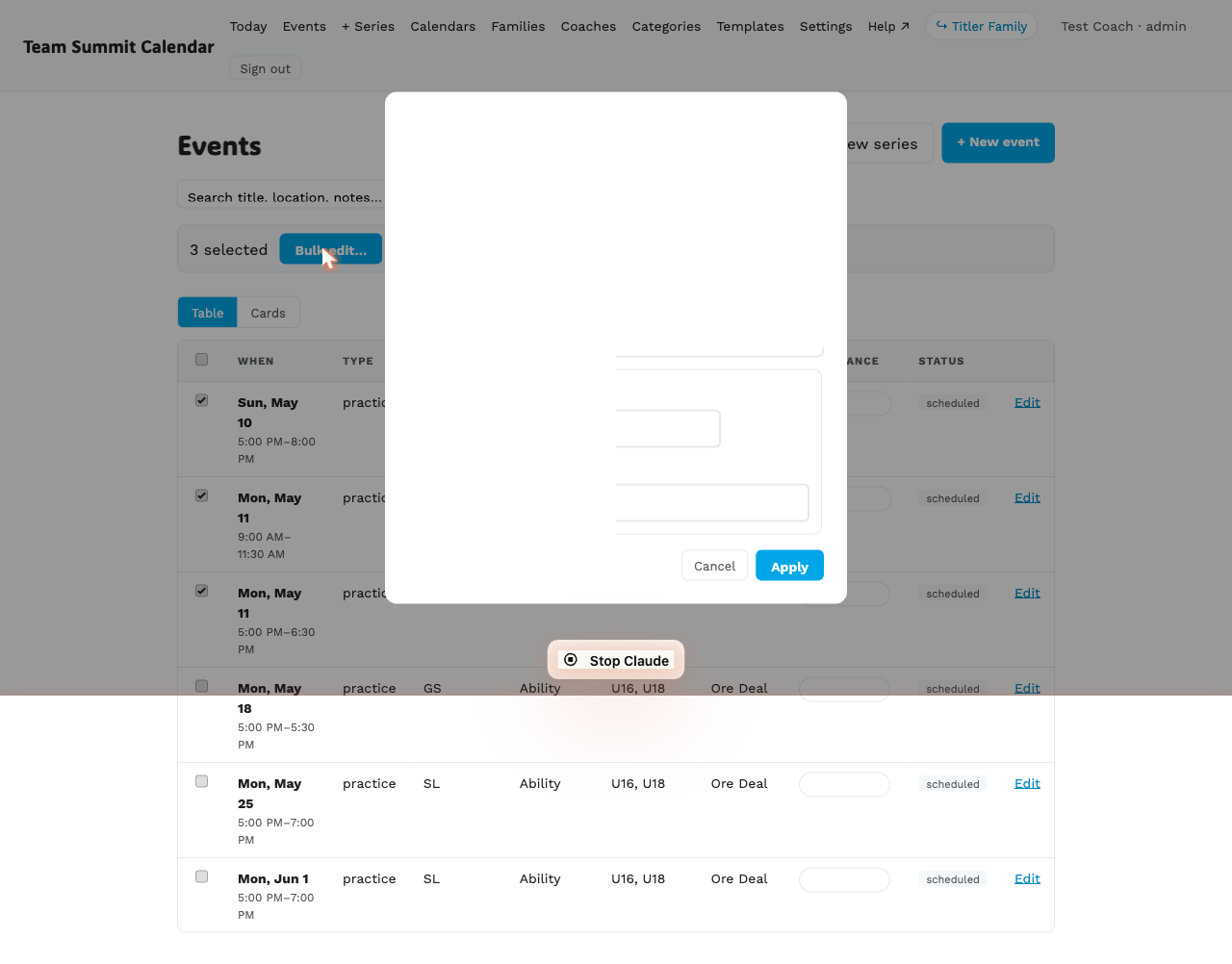
- Open /coach/events on a laptop. (Bulk-edit works on phone too but the table is wider on desktop.)
- Filter to the events you want to edit — by calendar, group, type, day of the week, or date range. The day filter is what makes “every Sunday” a single selection.
- Use the row checkboxes to select. Select all at the top of the first column toggles the whole filtered page.
- A bar appears above the table showing “N selected”. Tap Bulk edit… to open the dialog of fields.
- Pick fields:
- Discipline, Venue, Location, Address — set on every selected event.
- Type — Training / Race / Conditioning / Other.
- Race — Category, Gender, Races that day. These three make up the event’s name, so changing one renames every event you selected. This section only appears when your selection contains a race, or when you set Type to Race in the same edit.
- Notes — replaces the whole note on every selected event.
- Equipment and Eligibility categories — three modes each:
- Replace — overwrite the whole list.
- Append — add the listed items to whatever’s there.
- Remove — strip those items from each event.
- RSVP deadline — open, N minutes before start, or a fixed time.
- Start / end time — see below.
- Tap Apply.
Changing groups
Groups are in the bulk-edit panel, in their own section at the bottom. Choose add or remove, tick the groups, and they apply along with whatever else you changed.
Before you press Apply, the panel tells you what is about to happen — “U16 will be added to 12 events. Families in that group will start seeing them.” Removing says so more bluntly, because it takes events off phones people have already subscribed.
Only groups within one calendar are offered. An event belongs to a calendar through its groups, and the calendar decides which subscription feed publishes it — so moving an event’s groups across calendars moves it between feeds. Everyone subscribed to both would see events appear and disappear, and RSVPs would stay attached to athletes who may no longer be eligible. That is a delete-and-recreate, not an edit.
- If your selection spans more than one calendar, the section says so and asks you to narrow it with the calendar filter first.
- Otherwise you get add/remove for the groups in that calendar.
- An event always keeps at least one group. Any event that would be left with none is skipped and reported.
The common use is adding a second cohort to a season — “these 39 U16 trainings should include FIS too”.
Changing start / end times
Pick a start time or end time, tick the confirmation box, and Apply.
The time you pick is a time of day — every selected event keeps its own date. So filtering to Sundays and setting the end time to 1:30pm moves every Sunday’s finish, and nothing else.
If an end time would land before an event’s own start, that event is skipped and reported — 7:00am is a valid finish for a 6:00am start and not for a 9:00am one, so the answer differs per event.
Reading the result
The banner accounts for every event you selected, in three buckets:
- Updated — actually changed.
- Already had these values — matched and allowed, but nothing to do. This is the common one after a second pass, and it is a success, not a failure.
- Skipped, with the reason — “2 are in the past and are locked”, “3 are in groups you don’t have access to”, and so on.
If the selection spans more than one page, the bulk bar says so — Select all can only tick what’s currently loaded.
What gets notified
Bulk updates fan out individual notifications per event — so if you change location on 8 events for one family, that family gets 8 banner updates (one per event), but only one daily digest at 6pm summarizing them all. ≤48h events still push individually.
Venue, category and gender changes notify like a location or discipline change, because all three appear in the event’s name on a family’s calendar. Races that day is quieter — it shows on the family page but is not emailed.
When NOT to use bulk
- Cancellations — there is no bulk cancel; use the per-event Cancel button so the audit log says “cancelled” rather than a generic “bulk_update”.
- A one-off change to a single event — the per-event edit page is faster and the audit log reads better.