
Creating & inviting families
A family is the unit parents log in as. It owns one or more
athletes and one or more contacts (parent name + email +
phone). After a parent claims their family with a magic link, the
family lives at ts.onsnowlive.com/<slug> — e.g.
ts.onsnowlive.com/smiths.
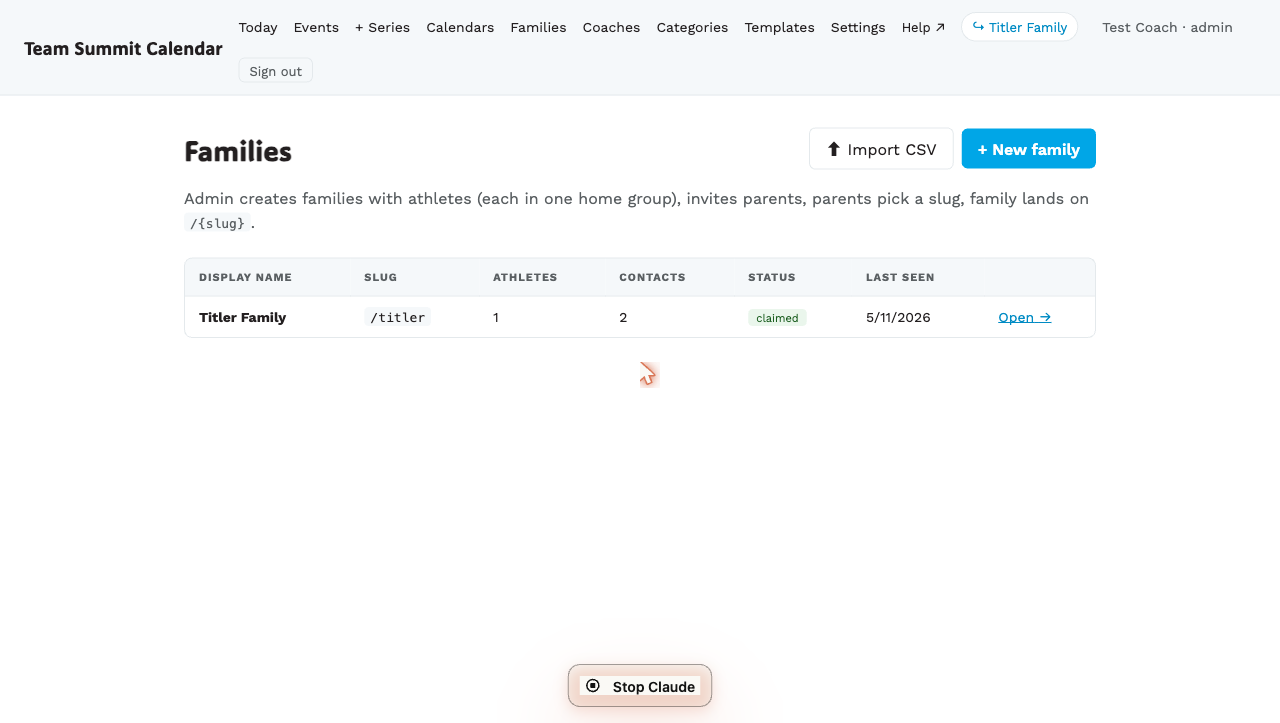
Manage families at /coach/families. For bulk creation see
Importing families from CSV, and for
inviting many families at once see
Bulk-inviting families.
The flow
- Admin creates the family record with at least one parent contact and at least one athlete.
- Admin sends an invite to one parent’s email.
- Parent clicks the magic link, picks a slug (e.g.
smiths), the family is claimed. - Parent shares the URL with the rest of the family or adds it to their home screen.
Until step 3, the family shows as draft (not yet invited) or invited (invite sent, not yet claimed). Once claimed, the slug shows up under the family on the list.
Step by step — create a family
- Go to
/coach/families→ tap + New family. - Add Athletes — name + home group for each. Add more rows with + Add another athlete.
- The Family name fills itself in from the first athlete — Rosa Alvarez’s family. Change it if you like; the family can change it themselves later.
- Add Parent contacts — at least one with an email (so you can invite them). Add more rows with + Add another contact.
- Create family.
You land on the family’s detail page at /coach/families/<id>. The
family is now in draft state.
Step by step — send the invite
On the family’s detail page:
- Scroll to Invite a parent to claim this family.
- Enter the parent’s email. Any address is accepted — it doesn’t have to be one already on the family, so double-check it before sending.
- (Optional) Suggest a slug — e.g.
smiths. The parent can accept or change it. - Send invite.
The parent receives an email with a one-tap claim link valid for 7 days. The family moves to invited state.
Reminders fire automatically
You don’t need to chase parents who don’t claim right away. The system schedules two reminder emails on the back of the invite:
| When | Subject |
|---|---|
| Day 3 of the 7-day window | ”Reminder: claim your {family} family page” |
| Day 6 of the 7-day window | ”{Club}: your family invite expires tomorrow” |
The reminders short-circuit the moment the parent claims — once an invite is consumed, no further reminders fire for it. If the link expires and you re-send a fresh invite, the cycle restarts with the new invite’s day-3 and day-6.
This applies to both single invites here and the bulk invite
flow at /coach/families (see
Importing families from CSV).
What the parent sees
The parent clicks the link → lands on a slug-picker form → confirms or
edits the suggested slug → the family is created at
ts.onsnowlive.com/<slug> and they land on it. From there they
bookmark or add to home screen.
What happens if the parent loses the email
The link expires after 7 days. Just hit Send invite again on the family detail page — it issues a fresh single-use token. The previous one becomes invalid.
Adding more athletes or contacts later
On the family detail page, Add athlete and Add contact forms accept additions any time, even after the family is claimed. The change shows on the parent’s family page the next time they visit.
Archiving an athlete (graduation, dropout)
On the family detail page, tap Archive next to the athlete.
- They stop appearing in attendance and event eligibility.
- The historical audit log keeps them.
- You can Unarchive if needed.
Deleting a family
Archiving hides a family and keeps the record. Deleting removes it for good — the family, its athletes, contacts and RSVP history.
At the bottom of the family detail page, Delete family…. The first tap tells you exactly what would go:
Deleting Rosa Alvarez’s family permanently removes 1 athlete, 1 contact, 3 RSVPs. This cannot be undone — archive instead if you only want it out of the way.
A second tap does it. Nothing is deleted until that second tap.
Use it for test families and genuine mistakes. For a family that’s leaving mid-season, archive instead — see Mid-season roster changes — because the history is usually worth keeping.